Signup, import, and your first edit
In this lesson you create a Descript account, import your first recording, pull a transcript, cut video by deleting text, and clean up filler words. You'll also see how scenes and clips work.
In the last lesson you saw Descript's core idea: you're not editing video, you're editing text. Now it's time to put that into practice. In this lesson you open an account and make your first real edit.
Creating an account
Head to Descript's homepage and sign up with your email or a Google account. After signup it usually points you to download the desktop app; Descript runs in the browser too, but doing your actual editing in the desktop app gives you a more stable experience.
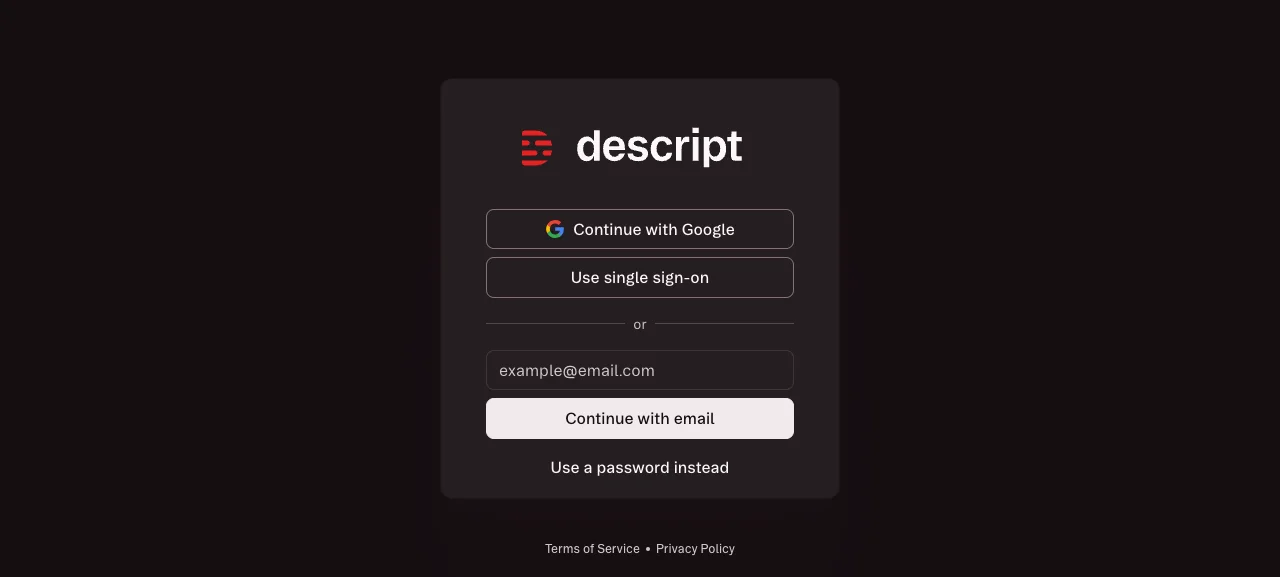 You can start on the free plan. Pinning down its exact current limits (monthly transcription minutes, export caps, and so on) in a single number here would be misleading, since those numbers change over time. Check Descript's pricing page for the current figures.
Importing video or audio
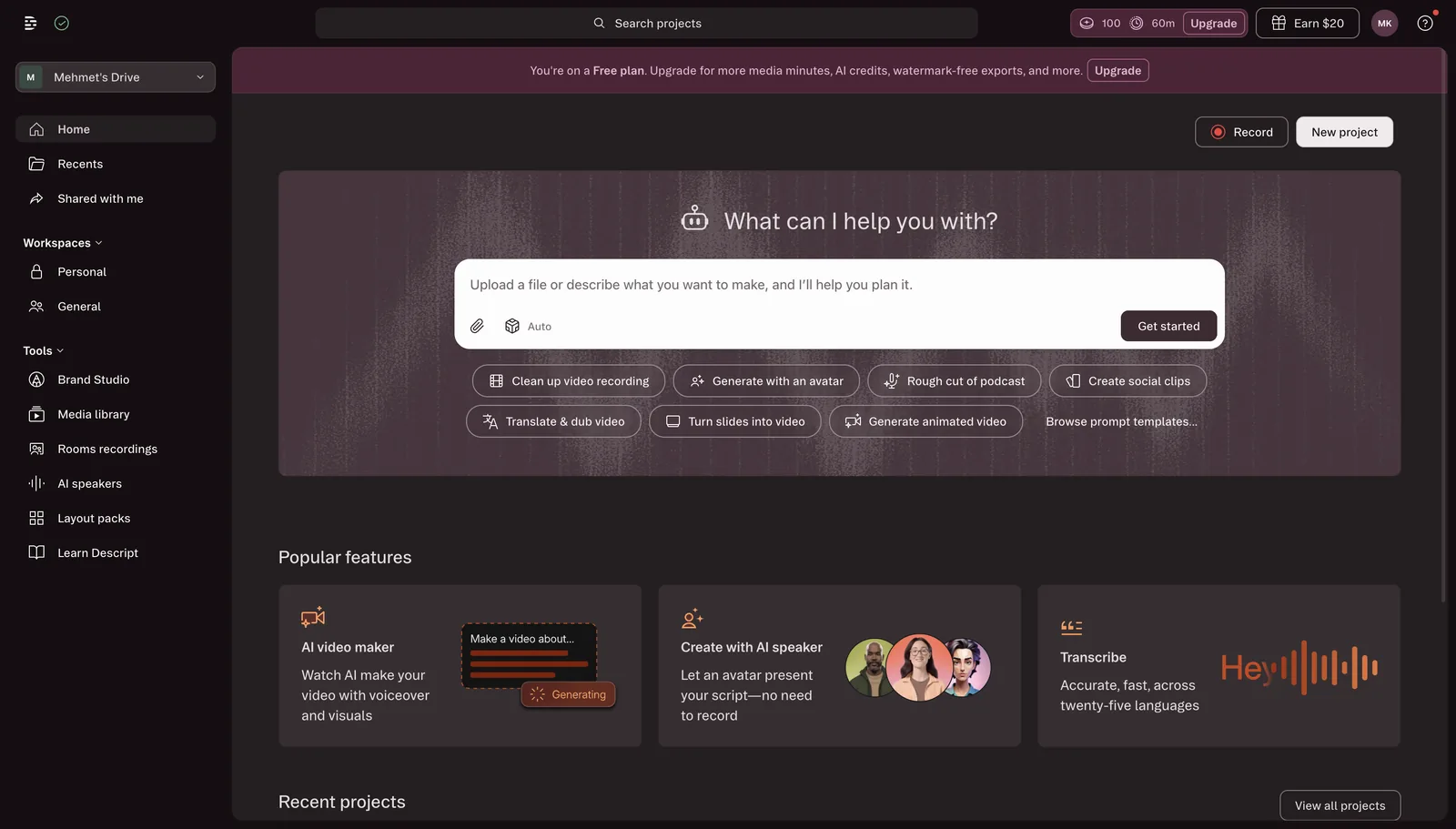
Once you're logged in, you create a new project. On the project screen you'll see an "import" or "upload" option; use it to select and upload a video or audio file from your computer.
Descript also lets you record directly: you can start a recording from inside the app using your screen's mic and camera. But this lesson assumes you already have a recording in hand, since that's the most common way people actually use it.
Pulling the transcript
Once your file is uploaded, Descript starts transcribing it automatically. Depending on how long your recording is, this can take a few minutes. When it's done, you get the full written text of the speech.
The first thing to do at this point: read through the transcript once while listening along with the video, start to finish. This is exactly where the accuracy caveat from the last lesson matters. If you spot a wrongly transcribed word, click it and fix it directly.
Why you shouldn't skip this step: if you start cutting before correcting the transcript, you risk deleting a section because a mistranscribed word made it look "unnecessary." A wrong transcript means a wrong cut.
Cutting by deleting text
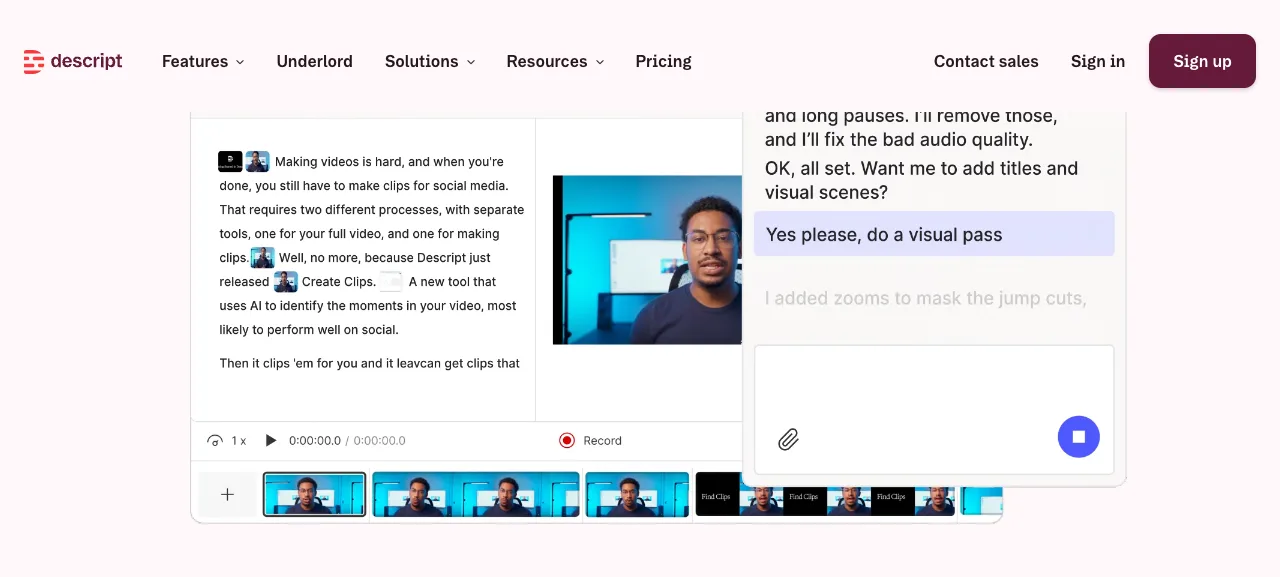
Once you've checked the transcript, you move into the actual edit. Select the sentence or phrase you want to remove with your mouse, exactly like you would in a word processor. The text you select gets highlighted in the video player at the same time, so you can see which footage you're about to cut.
Hit delete, and both the selected text and the matching section of video disappear. The remaining pieces snap back together automatically; you don't have to manually reconnect the two sides.
Source: descript.com/video-editing, accessed July 2026.
If you make a mistake, undo works exactly like it does in a classic text editor; you can bring back something you deleted by accident right away.
Cleaning up filler words
Descript has a feature that automatically finds and helps you clear out filler words ("um," "like," "you know") and long silences. When you run it, Descript suggests the sections to remove and you approve the ones you agree with.
The same rule applies here: don't accept the suggestions blindly. Quickly scan the proposed list before approving, since occasional real words can get flagged as filler by mistake.
Scenes and clips
If you want to manage a long recording in pieces instead of all at once, Descript lets you split your project into multiple clips or scenes. This is especially useful for content that moves section by section, like course lessons: you edit each part on its own, then stitch them together.
For now, what matters is being able to edit a single recording start to finish. Scenes and clips come into play once you need to combine multiple recordings.
Why this order matters
This lesson deliberately walked you through a specific sequence: import first, then check the transcript, then cut, then run automatic cleanup last. Reverse that order (say, trusting automatic cleanup before checking the transcript) and your risk of bad cuts goes up.
Lesson checklist
- I created a Descript account and accessed the desktop app
- I imported a video or audio file and pulled a transcript
- I checked the transcript against the video and corrected wrong words
- I made at least one cut by selecting and deleting text, and tried the filler-word cleanup
Next lesson: exporting your finished video, and the most common mistakes beginners make.