Editing your video like a text document
Descript turns your video into text first, so you edit it the way you'd edit a Word doc. This lesson lays out honestly who this workflow actually solves editing for, who it doesn't, and where its accuracy depends on your source audio.
You shot a talking-head video. Now comes editing. Open a classic editor and you're staring at a timeline, layers, dozens of effect buttons. All you wanted was to cut one sentence, and instead you're scrubbing back and forth on a timeline for minutes.
Descript solves this from a different angle: instead of cutting the video, you edit its transcript.
What text-based editing actually means
When you upload a video or audio file to Descript, it transcribes it automatically first. So what you see isn't a timeline, it's the written text of every word you said.
Here's the difference: to delete a sentence, you select it in the text and hit delete. The video cuts that section automatically. You're not figuring out "which second to which second do I cut", you're deciding "this sentence is unnecessary" and removing it, and the edit just happens.
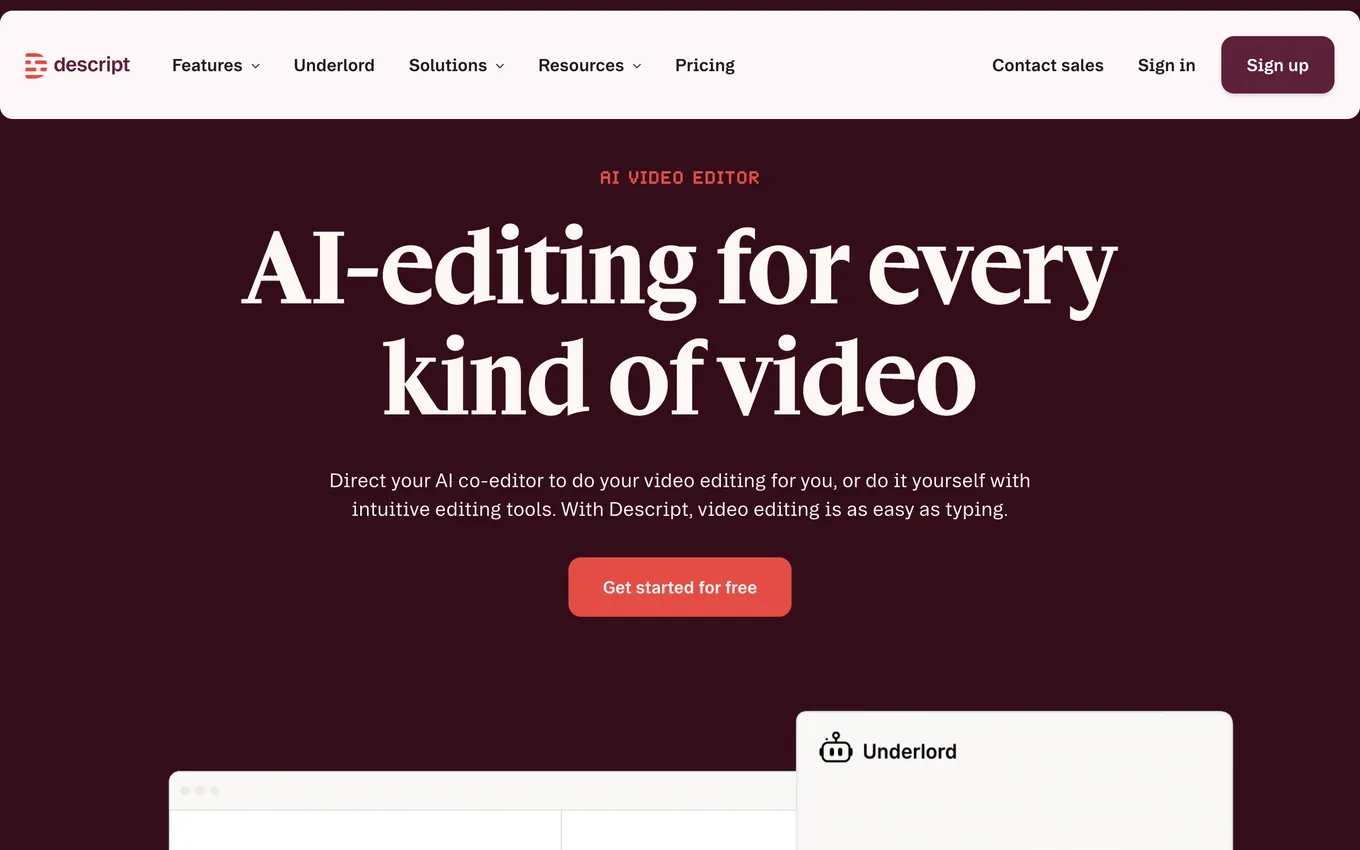
Source: descript.com, accessed July 2026.
Who this solves editing for
This approach shines for three specific kinds of work:
- Talking-head video. Solo pieces where you're speaking straight to camera or phone, heavy on cutting and trimming. Clearing out filler words and flubbed sentences is far faster through text than through a timeline.
- Podcasts. Listening to a long conversation and pulling the "we didn't need that part" sections becomes as simple as reading and deleting.
- Course lessons. Cutting the retakes, stumbles, and "let me start that again" moments while recording a lesson is much less tiring to do in text than hunting through footage.
The common thread: all three formats are essentially speech. Your editing need stays at the level of "keep the right sentences, cut the rest."
Who it doesn't work for
Descript doesn't solve every editing need. If you're cutting a cinematic ad, layering heavy effects and transitions, or syncing multiple video tracks frame by frame, a classic editor (Premiere, DaVinci Resolve, Final Cut) gives you more control. Descript's strength is speech-driven content; the moment your work leans on visual effects, its limits show up fast.
Here's a quick test for your own case: does most of your video consist of you or someone else talking? If yes, Descript's text-first logic fits exactly what you need.
An honest note on transcript accuracy
Descript's transcript quality varies by the language and audio it's working from. Feed it clean English audio and the transcript comes back remarkably accurate almost every time. Background noise, overlapping speakers, or a strong accent can still trip it up, same as any transcription tool.
That doesn't make the tool unusable. It does mean one thing you need to know upfront: cutting without checking the transcript first is risky. The next lesson shows you why that matters and how to guard against it.
Why I started with this lesson
Before you learn a tool, answering "what does this actually solve for me" is worth more than jumping straight to clicking buttons. Instead of opening Descript and getting lost wondering where to start, you now have a clear frame in your head: if your video is speech-driven, you edit by editing text.
Lesson checklist
- I understand that Descript transcribes the video first and editing happens through that text
- I know the three formats (talking-head video, podcast, course lesson) this logic works best for
- I know that heavy-effects or cinematic editing is better suited to a classic NLE
- I understand transcript accuracy depends on the source audio, and that I shouldn't cut without checking it first
Next lesson: you open an account, import your first recording, and make your first real edit.