Create an account and upload your first recording
Create your workspace, import a recording, and generate your first transcript. This lesson explains the upload options and how to check the current trial or plan allowance.
You now know why a recording based workflow can save time. The next step is practical: create your account, upload one real recording, and wait for the first transcript.
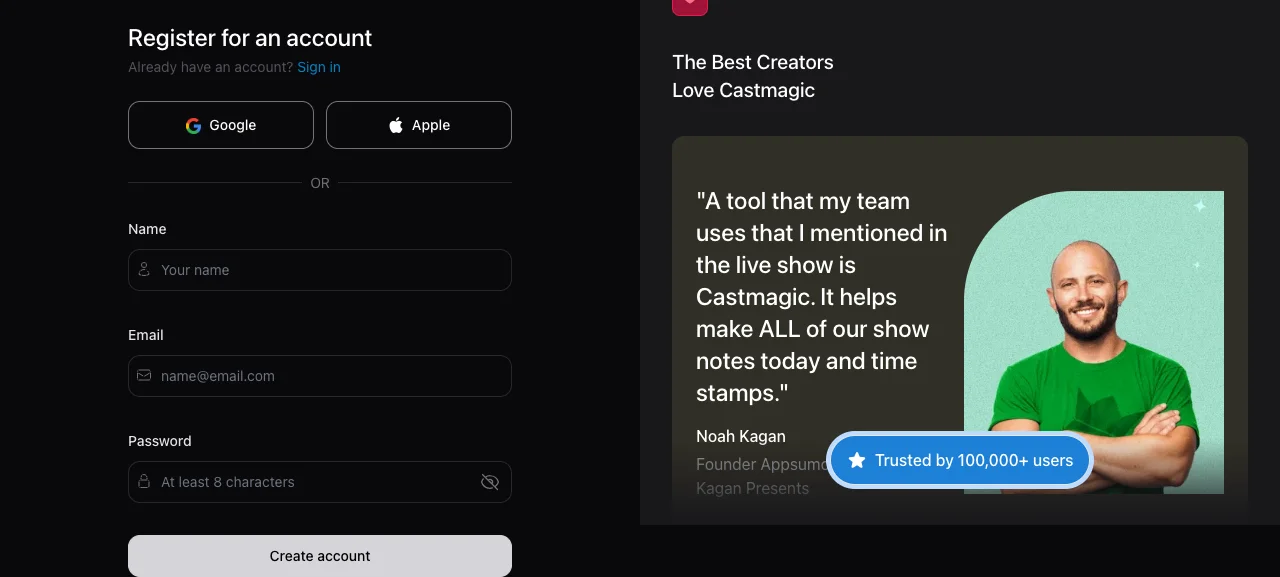
Create your account
Visit Castmagic and register with an email address or a supported connected account such as Google. After signup, the product may ask you to create a workspace.
SaaS interfaces change over time, so follow the labels shown in your own account instead of relying on the exact position of a button in this lesson.
Check the current trial or allowance
Castmagic plans are organized around processing minutes or credits. A separate free trial may not always appear in the same form.
After creating the account, open the billing or plan area and check your current allowance. Do not rely on a fixed number from an old tutorial. The current terms on Castmagic's official pricing page and inside your account are the source of truth.
Ways to import a recording
Castmagic supports several source types:
- Upload an audio file: Drag in a file such as MP3, WAV, or M4A.
- Upload a video file: The service extracts and processes the audio.
- Import through a link or integration: As of July 2026, Castmagic advertises more than 12 sources, including Zoom, Google Drive, Zapier, RSS feeds, YouTube, TikTok, and Instagram. Confirm the current list on castmagic.io/features.
The basic sequence is the same: choose a source, import it, and wait for processing to finish.
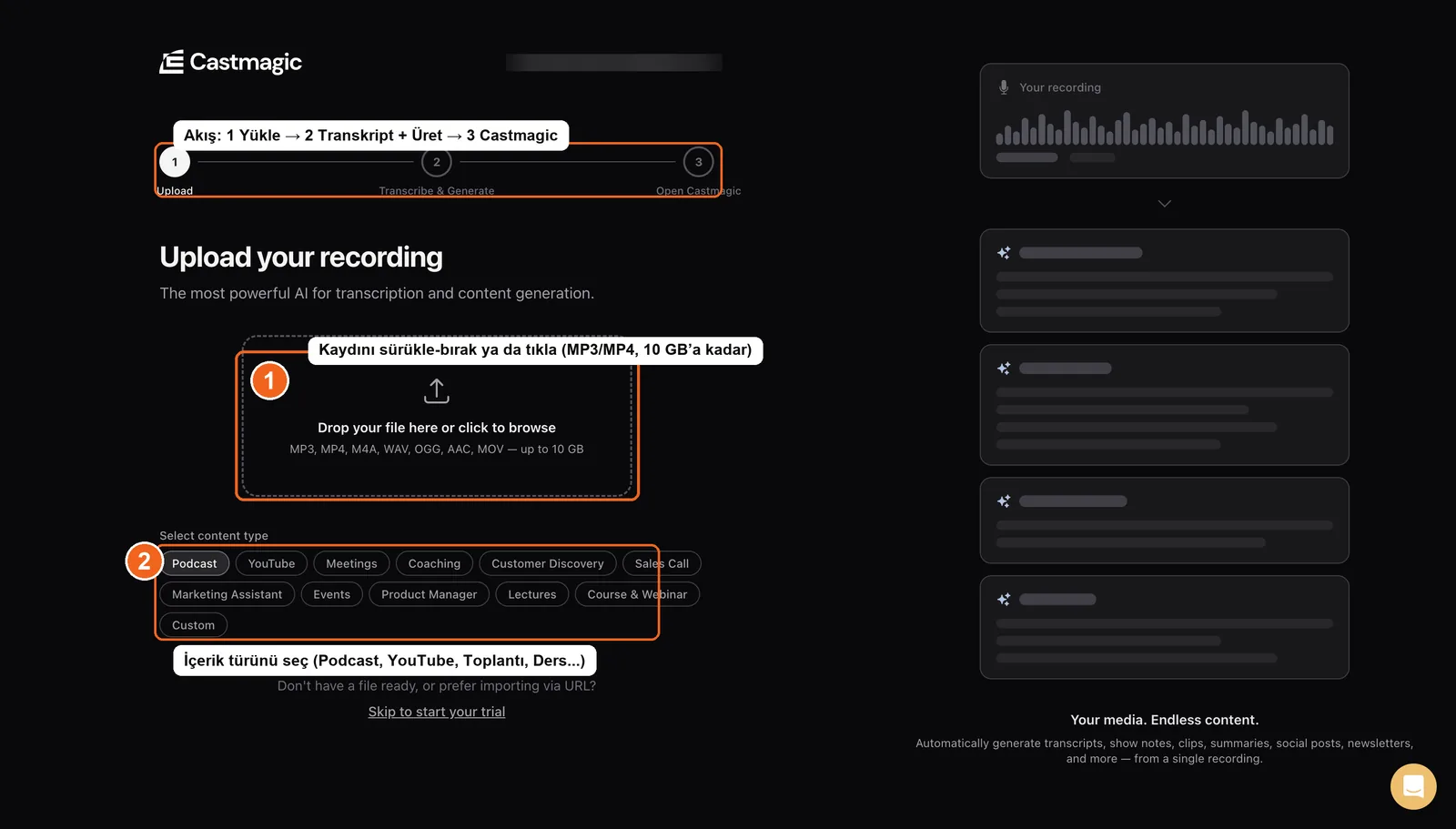
Source: Castmagic upload interface at app.castmagic.io, accessed July 2026.
Generate the transcript
Once the upload is complete, Castmagic processes the recording. The time required varies with recording length and service load.
When processing finishes, you should see a transcript of the conversation. This transcript is the foundation for every later summary, set of show notes, and social post. Make sure the full recording has been processed before generating downstream assets. An incomplete transcript produces incomplete content.
Why this sequence matters
Your first upload shapes your impression of the tool. Knowing that importing and transcription are separate steps helps you recognize normal processing instead of assuming the service has failed.
Lesson checklist
- I created a Castmagic account
- I checked the current plan or trial allowance in my account
- I uploaded at least one audio or video recording
- I identified the import method that best fits my workflow
Next, you will learn how to review a transcript before using it.