Two ways to open n8n
There are two ways to start with n8n: sign up for Cloud with zero setup, or install it on your own machine. This lesson lays out the honest trade-off between the two and explains the owner account screen you'll hit on first launch.
In the Make and n8n fundamentals course, you learned what automation actually is, what parts it's built from, and how to choose between Make and n8n. I already covered the difference between fair-code and Cloud there, so I won't repeat it here. This course picks up exactly where that one left off: now you're actually getting your hands on the screen.
There are two ways into n8n, and they're genuinely different from each other.
Option one: n8n Cloud
n8n's own hosted Cloud version asks for zero setup. You create an account, and the n8n panel is sitting there in your browser. You start with a trial, then move to usage-based pricing (billed per execution).
Who this makes sense for: if you don't want to deal with technical setup and just want to get in quickly and automate a real task, this is the shortest path.
Option two: install it on your own computer or server
You can install n8n on your own machine or on a server. The upside is free, unlimited use, but there's a technical bar to clear: you need some Docker or command-line knowledge. You set it up once, and after that n8n opens in your browser too, the only difference is where it's hosted.
Who this makes sense for: if you're comfortable on the technical side, or you want to bring your long-term cost down to zero.
Advice if you're just starting out
If this is your first time seeing n8n, either option works. You can jump in with Cloud and get a feel for the logic fast, or try the local install this course walks you through. Whichever you pick, the panel inside is identical: same canvas, same nodes, same logic.
The screen you'll hit on first launch
The first time you open n8n, you'll land on a "set up owner account" screen. It asks for your email, first name, last name, and a password, and there's a specific rule for the password: at least eight characters, with one number and one uppercase letter.
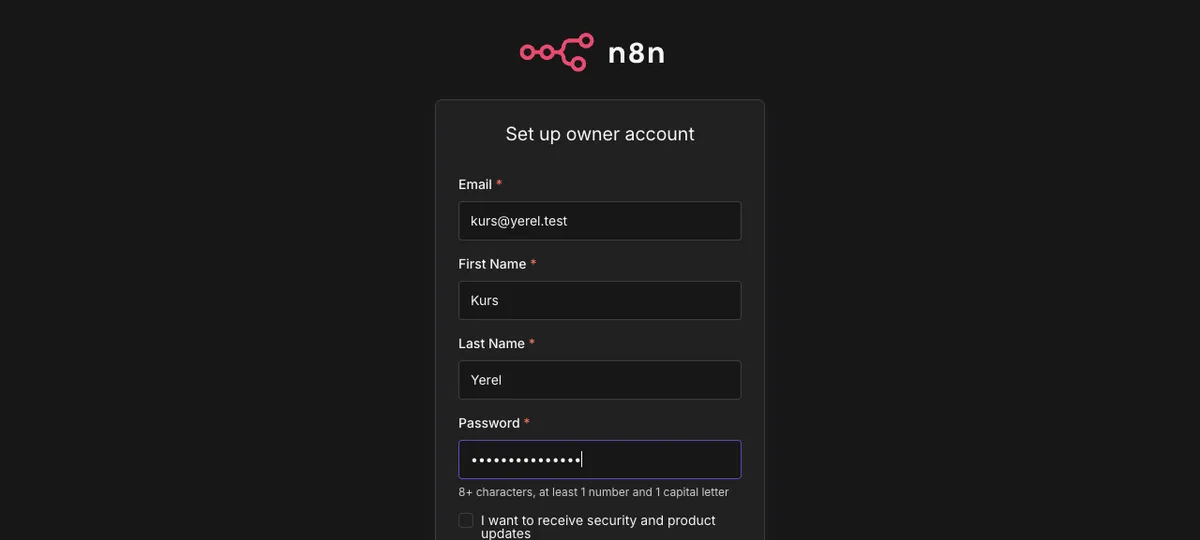
Source: n8n panel (local install), accessed July 2026.
Don't let this throw you off: it's not a payment screen. This account just logs you into your own n8n panel, marking you as the owner. Both Cloud and the local install show you this exact same step.
Once your owner account is set up, n8n drops you straight onto an empty canvas. In the next lesson, we'll look at what that canvas actually is and how to start adding nodes to it.