Signup and your first deck
Creating an account, how the free tier actually works, generating a deck from a prompt, and picking a theme. Finish this lesson with a real first presentation in hand.
In the last lesson you saw what Gamma is. Now for the part that actually matters: getting a real presentation into your hands.
Creating an account
You go to gamma.app and sign up with your Google account or your email. No extra setup, no software to install. It opens right in your browser.
How the free tier actually works
The first time you sign in, Gamma hands you a chunk of free usage. Think of it this way: every presentation, document, or web page you generate spends some of that allowance, and image generation in particular (Gamma finding or creating pictures for you automatically) burns through it faster than the rest. Once the free allowance runs out, you either wait for the next cycle or move to a paid plan.
I'm not quoting numbers here because Gamma updates them from time to time. For the current figures, check Gamma's own pricing page; once you're inside your account, your remaining allowance shows up somewhere in the panel too.
Generating a deck from a prompt
On the home screen, hitting "create new" first asks what you want to make: presentation, document, or web page. Pick presentation, and you start one of two ways:
- Paste your own text: if you already have a proposal, some notes, or a draft, paste it in and Gamma breaks it into cards.
- Write a single prompt: something like "an 8-card starter deck for a new Etsy seller" is enough, Gamma builds the content itself.
The second route is faster but comes out more generic; the first carries more of your own voice. If you have real content on hand, paste it in. If you're starting from nothing, a prompt is enough.
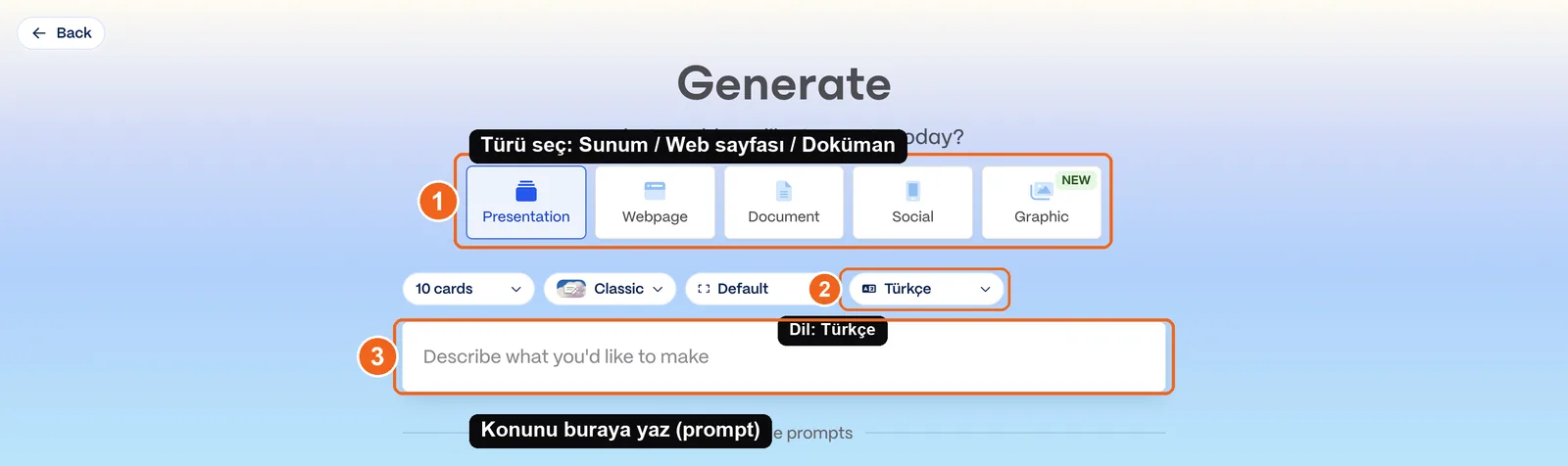
Source: Gamma's creation panel (gamma.app/create), accessed July 2026.
Gamma also asks for a card count, so you decide up front how many slides the deck will run. Fewer cards means a tight, focused deck; more cards means more detail but a longer read.
Picking a theme
Before or right after your content generates, you pick a theme. The theme sets the color palette, the font, and the overall visual character. Trying a few different themes and picking the one that fits your content is much faster than going back and hand-adjusting colors later.
If you run a business with set brand colors, pick the theme closest to them and fine-tune from there by hand; don't expect it to auto-match your exact brand color, a point I'll come back to in the next lesson.
Editing basics
Once the deck is generated, you can still work on each card individually:
- Click a card and edit its text directly.
- Use the menu that appears on hover to add a new card or delete one you don't need.
- Swap out images or remove them.
The golden rule here: Gamma hands you a draft. Your job is to review that draft and make it sound like you, with your own facts in it. Shipping the first version exactly as generated is one of the common mistakes I'll cover in the next lesson.
Chapter checklist
- I created a Gamma account and understand how my free allowance gets used up
- I tried generating a deck both by pasting my own text and by writing a single prompt
- I picked a theme and edited text/images on a card
Next lesson: how to share this presentation, which formats you can export it to, and the most common mistakes people make.