Exporting, sharing, and common mistakes
Sharing by link, exporting to PDF/PPT, and what each plan actually includes. Then three common mistakes: dumping everything into one prompt, presenting without reviewing the text, and skipping the manual brand-color fix.
Your presentation is ready. Now for getting it in front of the other person, the right way.
Sharing by link
The fastest way to share from Gamma is a link. Hit the share option in the top-right corner of your presentation, and it generates a link you send to your client by email or message. The other person sees the presentation directly in their browser, no download required, and your layout, animation, and interactivity all come through exactly as you built them.
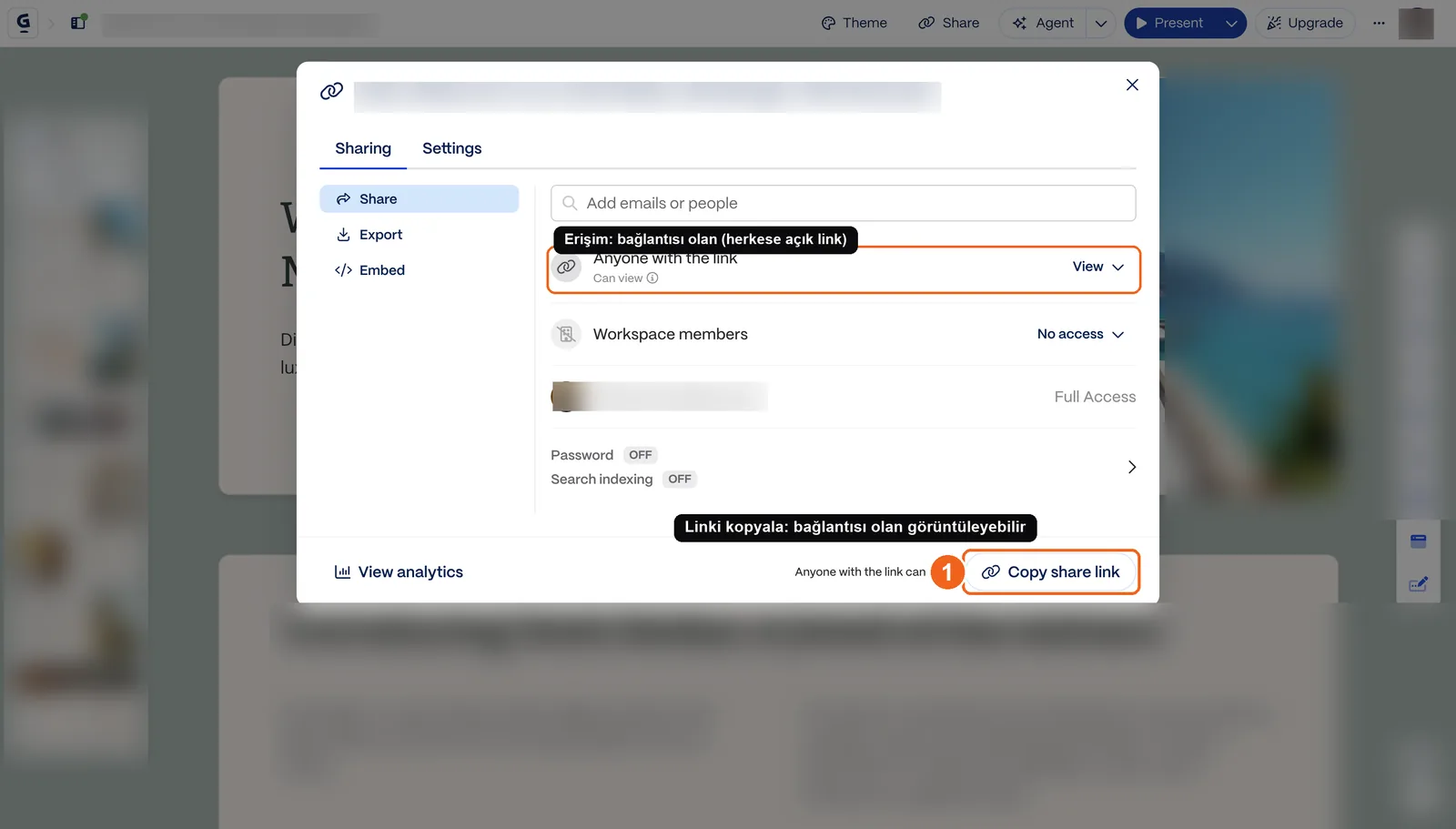
Source: Gamma's share panel, accessed July 2026.
That's the upside of link sharing: nothing gets corrupted, and the other side doesn't need any particular software. The downside: if they specifically want a file (PDF/PPT), you'll still need to export one separately.
Exporting to PDF and PPT
You can also download your presentation as a file. PDF and PowerPoint (.pptx) are the two common options: PDF stays a fixed image-like format, while PPT is a file the other person can actually edit inside PowerPoint.
One thing to watch here: which export option is available on which plan, and how the watermark behaves, depends on Gamma's plan structure and shifts over time. I'm not giving you a fixed plan-to-feature mapping here because even Gamma's own sources don't fully agree with each other; your best move is to check the screen that comes up when you hit export.
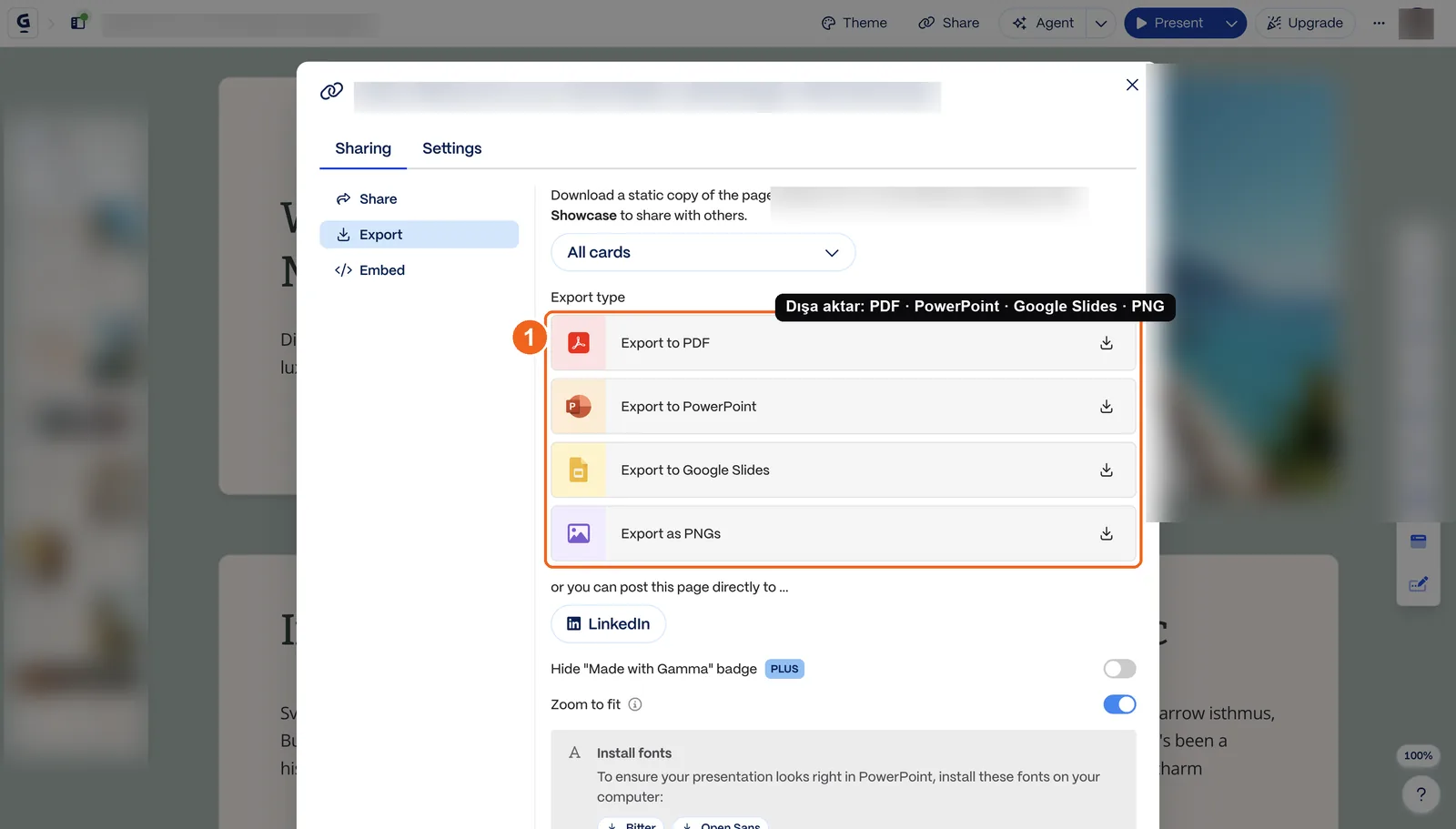
Source: Gamma's export panel, accessed July 2026.
Common mistakes
Not an exhaustive list, but three that show up again and again.
Expecting one prompt to do everything. You write something like "make me the perfect investor deck" in a single sentence and expect Gamma to guess your business, your numbers, your audience. It won't. The more concrete detail you give it (who, what, what outcome), the closer the draft lands to your actual business. Your first prompt is usually a starting point, not a final version.
Presenting without reviewing the text. Gamma's sentences read smoothly, but they're not your numbers, your client names, your actual offer. Sending it off because "it sounds good" without reading card by card is how a wrong figure or a generic sentence ends up in front of your client. Read every card once before you send it.
Skipping the manual brand-color fix. As I mentioned in the last lesson, Gamma applies its own color palette based on the theme you picked, it doesn't automatically match your corporate colors. If you have a brand identity, check your logo and primary colors by hand after picking a theme. Skipping this step is how an otherwise good deck ends up reading as "this isn't our brand."
Why we built this course this way
We kept these four lessons short because Gamma itself is a fast tool; a long guide about it would work against the point. The goal was to get you to your first finished deck within an hour. We didn't get into the fine design details, because that's not where this tool is strong to begin with.
Chapter checklist
- I tried sharing my presentation as a link and exporting it as PDF/PPT
- I know export options change depending on the plan, and that I need to check the current state
- I recognize the three common mistakes: over-relying on one prompt, sending without review, and skipping the brand-color fix
You've finished this course. You now know what Gamma produces, whose problem it solves and whose it doesn't, how to set up your account and generate your first presentation, and how to share it the right way. Time to open up your next proposal and give it a try.
You finished this course. I also share updates about these tools in the weekly newsletter: